


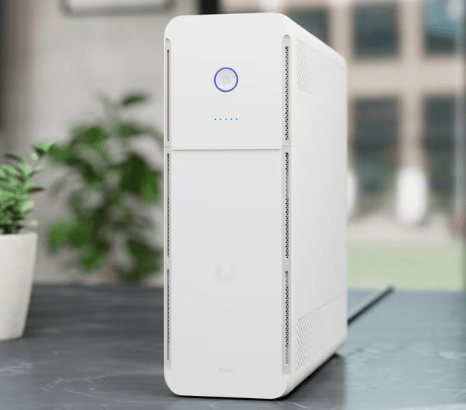
As my home network has continued to grow, power protection has become just as important as network performance. Over the past few months, I’ve transitioned from a simple consumer network into a rack-mounted UniFi deployment that serves as the backbone of my apartment. Between HomeAssistant, multiple switches, Wi-Fi access points, automation, and security devices, an unexpected power outage can bring everything to a halt.
To solve that problem, I decided to add the UniFi UPS Tower to my rack since I noticed it was finally in stock as I was ordering some replacement mounts for my E7 and U7 Pro access points that I lost in the move. Don’t mind if I do!
Why I Chose the UniFi UPS Tower
Rather than replacing my existing UPS, I decided to dedicate each battery backup to a specific purpose.
My old UPS that I used in my rack in the old house, a Tripp Lite SMART1500LCDT UPS, continues to protect my workstation, powering both my personal desktop and my work computer. Those systems draw significantly more power and have different runtime requirements than my networking equipment, so the UniFi UPS Tower wouldn’t be able to handle the load.
The new UniFi UPS Tower, on the other hand, is dedicated entirely to my network rack. This separation means that heavy CPU or GPU loads on my desktop won’t reduce the available runtime for my networking equipment. If the power goes out, my internet, Wi-Fi, HomeAssistant, and management services can continue operating independently of my office computers.
It’s a much cleaner design and aligns with the philosophy of treating the network as critical infrastructure.
What Is the UniFi UPS Tower?
The UniFi UPS Tower is Ubiquiti’s uninterruptible power supply designed specifically for networking equipment. While it functions like any traditional UPS by providing battery backup during a power outage, it also integrates directly into the UniFi ecosystem.
Instead of simply acting as a battery, the UPS becomes another managed device inside UniFi Network. Administrators can monitor:
- Battery health
- Charge percentage
- Input and output voltage
- Estimated runtime
- Power consumption
- Historical events
- Self-test status
- Power outage notifications
Having these statistics alongside switches, gateways, and access points makes the entire infrastructure feel like one cohesive platform rather than a collection of unrelated devices.
For anyone already invested in UniFi, that native integration is one of the biggest selling points.
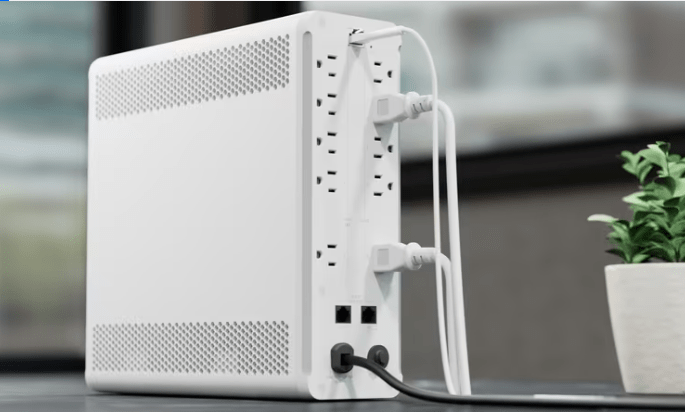
My Rack Configuration
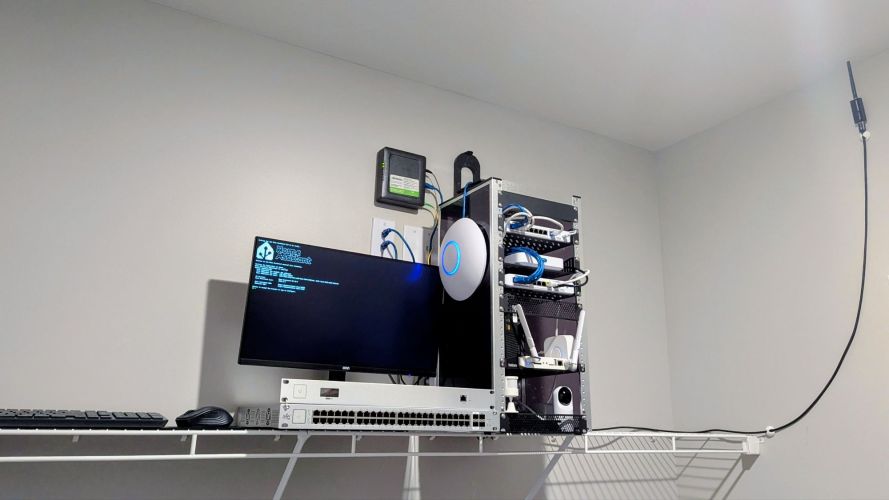
The UPS Tower will provide backup power for my networking rack, which currently includes:
- UniFi Cloud Gateway Max
- UniFi Flex 2.5G PoE Switch ( x2)
- UniFi Flex 2.5G Switch (Non-PoE)
- UniFi U7 Pro Access Point
- UniFi E7 Access Point
- HomeAssistant server
- Low-power rack accessories
- IoT hubs and network devices as my lab continues to expand
Keeping these devices online during short outages means:
- Wi-Fi remains available
- Internet connectivity continues (assuming ISP power remains available)
- HomeAssistant automations continue to run
- Remote management stays accessible
- Smart home devices remain functional
- Network monitoring continues uninterrupted
Expected Runtime
One question everyone asks about any UPS is simple:
“How long will it last?”
The answer depends entirely on the power draw of your equipment. Fortunately, networking hardware is remarkably efficient.
Here’s an estimated power budget for my rack:
| Device | Estimated Power |
|---|---|
| Cloud Gateway Max | ~15 W |
| Flex 2.5G PoE Switch | ~20–40 W (without heavy PoE load) |
| Flex 2.5G Non-PoE Switch | ~8 W |
| U7 Pro Access Point | ~18–22 W |
| Miscellaneous rack devices | ~10–20 W |
Ubiquiti rates the UniFi UPS Tower at approximately 7 minutes at a 300-watt load. While runtime isn’t perfectly linear—UPS systems generally become more efficient at lighter loads—that specification provides a solid baseline for estimating how long it will power my home lab.
The UPS Tower will be dedicated exclusively to my networking rack and will power:
- UniFi Cloud Gateway Max
- UniFi Flex 2.5G PoE Switch
- UniFi Flex 2.5G Switch (Non-PoE)
- UniFi U7 Pro Wi-Fi 7 Access Point
- Miscellaneous low-power rack accessories
Based on the power consumption of each device, I estimate the networking equipment will draw approximately 75–85 watts during normal operation.
Scenario 1: Network Only
If I use the UPS Tower solely for my core UniFi infrastructure, I can expect an estimated runtime of approximately 25–32 minutes. Because UPS systems often perform slightly better at lighter loads than a simple linear calculation suggests, I wouldn’t be surprised to see real-world runtimes closer to 30–40 minutes, depending on the actual PoE load, battery condition, and ambient temperature.
That would be more than enough to ride out the majority of power interruptions while keeping my internet connection, Wi-Fi, and remote management capabilities online.
Scenario 2: Network + HomeAssistant
I’m also considering connecting my Lenovo ThinkCentre running HomeAssistant OS to the UPS. The system is extremely power efficient, typically consuming around 15 watts during normal operation.
Adding the HomeAssistant server brings the estimated total load to approximately 90–100 watts.
At that load, I expect the UniFi UPS Tower to provide approximately 20–24 minutes of runtime, with real-world performance potentially extending into the 20–30 minute range depending on conditions.
For my environment, that’s still more than enough time to keep automations running, maintain internet connectivity, and safely shut down equipment if the outage becomes prolonged.
Why I’m Using Two UPS Units
One design decision I made was to separate my computing equipment from my networking infrastructure.
My existing UPS remains in my office, where it protects both my personal desktop and my work computer. Those systems can easily consume several hundred watts under load, dramatically reducing battery runtime if they shared the same UPS as my network.
The UniFi UPS Tower, meanwhile, is dedicated entirely to my rack. By isolating the networking equipment, I can maximize runtime for the devices that matter most during a power outage—my gateway, switches, access point, and HomeAssistant server. Even if my desktops eventually exhaust their battery backup, my network can continue operating independently.
It’s a simple architectural change, but one that significantly improves resiliency and aligns with how enterprise environments prioritize critical infrastructure.
While I’ll know the exact runtime once everything is installed and monitored through UniFi, these estimates suggest the UPS Tower should comfortably provide 20–40 minutes of backup power in my environment. That’s more than enough for the brief outages I typically experience and provides valuable peace of mind knowing my network won’t immediately go offline the moment utility power is interrupted.
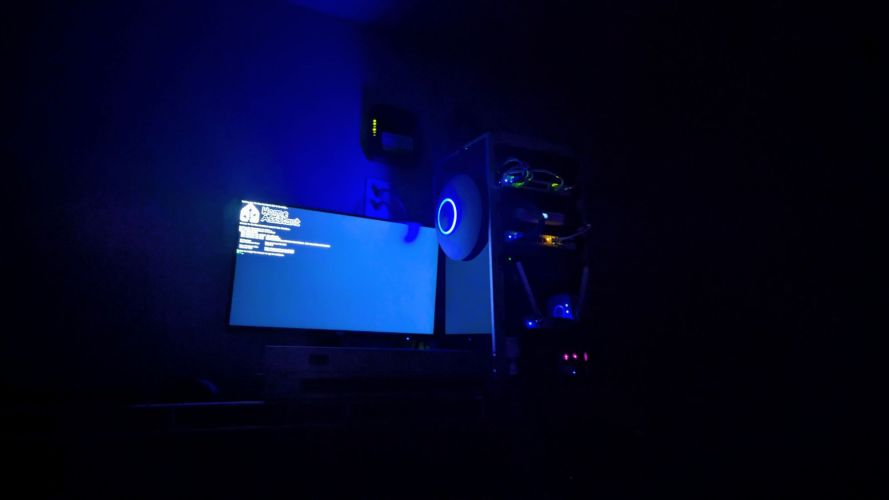
Why Dedicated Network Backup Matters
Many people plug everything into a single UPS and call it a day.
That certainly works, but it isn’t always the most effective approach.
Gaming PCs and workstations can consume hundreds of watts—even while idle—and much more under load. A powerful desktop running a high-end graphics card can drain a UPS surprisingly quickly.
Networking gear, by comparison, is extremely power efficient.
By separating my office equipment from my networking equipment, each UPS is optimized for its specific workload. My computers no longer compete with my network for battery capacity, allowing my internet and Wi-Fi to stay online much longer during an outage.
It’s a small architectural change that offers a significant improvement in resiliency.
Integration with the UniFi Ecosystem
One feature I’m particularly excited about is having the UPS fully integrated into the UniFi dashboard.
Instead of checking a small LCD screen or relying on separate software, everything is managed from the same interface I already use to monitor my gateway, switches, and access points.
This unified experience has always been one of UniFi’s strongest advantages. As more infrastructure devices become part of the ecosystem, the dashboard becomes a true single pane of glass for managing the entire network.
Final Thoughts
The UniFi UPS Tower isn’t just another battery backup—it’s an extension of the UniFi platform.
For users who already rely on UniFi gateways, switches, access points, and rack equipment, it provides intelligent monitoring, centralized management, and reliable power protection in a package that feels purpose-built for modern home labs and small business deployments.
As I continue expanding my rack with additional automation hardware, HomeAssistant integrations, and future UniFi devices, the UPS Tower will serve as the foundation that keeps everything running when it matters most.
For anyone already invested in the UniFi ecosystem, the UPS Tower is one of those upgrades that doesn’t necessarily make your network faster—but it makes it considerably more resilient. And in networking, reliability is often far more valuable than raw speed.
The UniFi UPS Tower arrives tomorrow, so I will update this post with my thoughts on the product. Stay tuned!
Update: 7/9/26
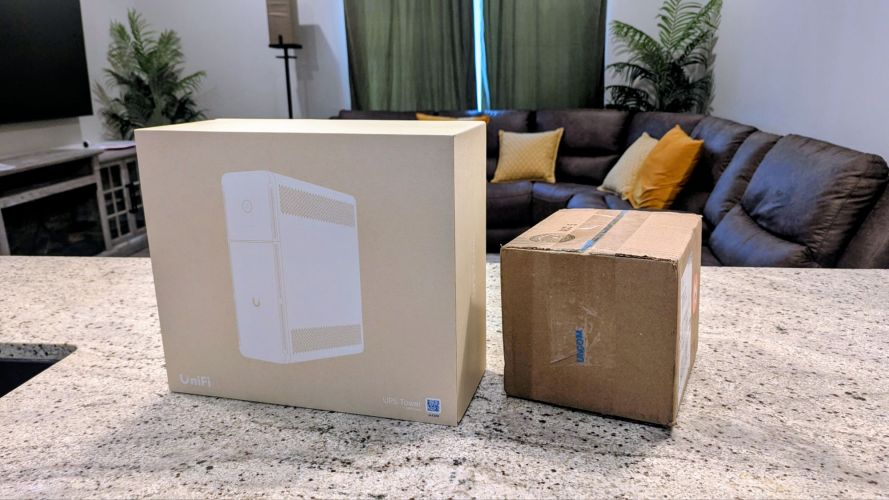
Got everything yesterday evening and spent some time getting it installed. Like any UPS, the install process is quite simple. You just need to place the device in the intended position, plug in the power, and then move all of the other device’s cords into it. However, spend some time figuring out what exactly needs battery protection, as powering, as an example, cooling fans, like in my situation, wouldn’t be ideal.

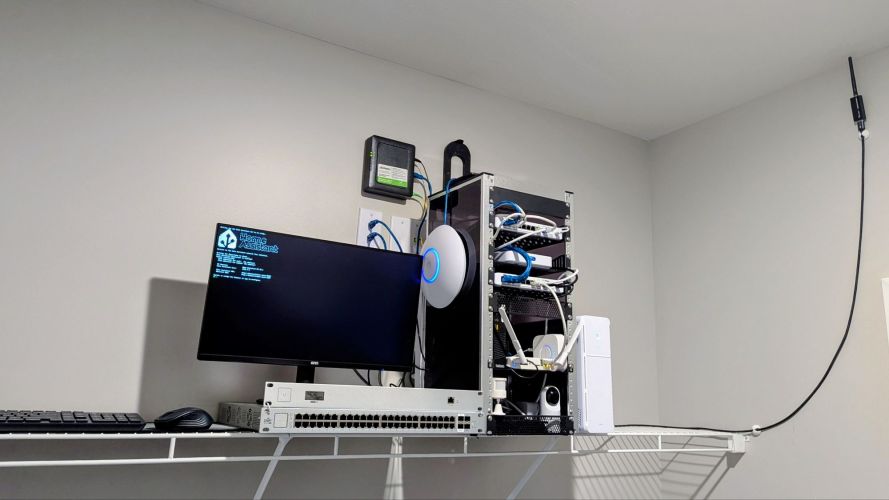
Overall, I am impressed with the device due to its smaller size compared to its power availability, and feel that while it doesn’t necessarily provide anything more than other brands’ pr, the ability to track and control the device in my current UniFi ecosystem is amazing. The UPS Tower also looks pretty sharp, offering a lowkey modern look that I attribute to UniFi products so much. I didn’t expect too many remote capabilities or data from this device, and I am glad I didn’t. While you can see the current load, power on and off, set up auto-reboots when power comes back, etc., there isn’t much relating to individual port draws or estimated power remaining, unless I just haven’t seen it yet.

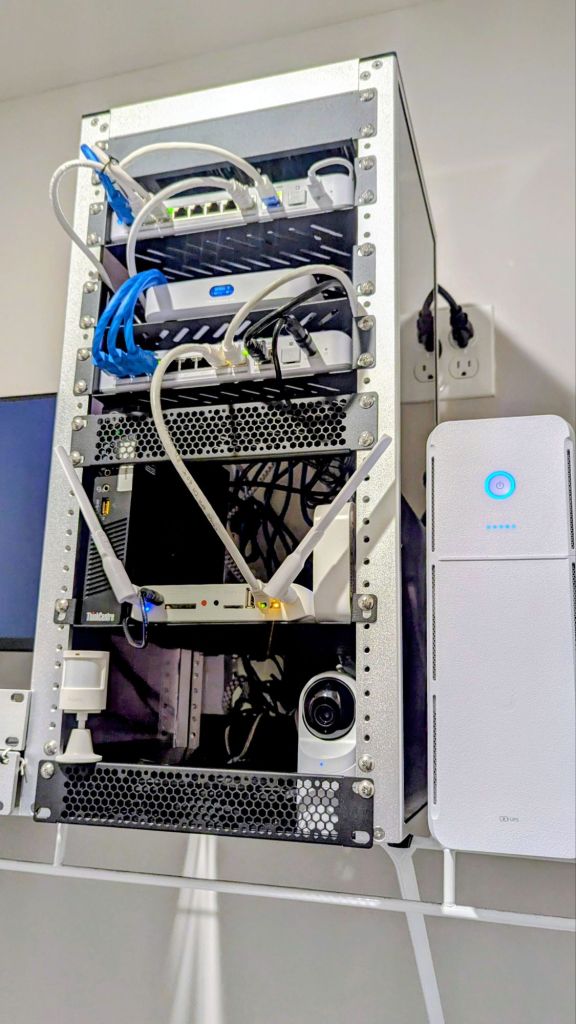
For the moment, I just unplugged the rack’s dual power strips in the back and though them into the UPS, but, I will soon go through where each power cord goes to and separate them a bit, moving some to the non-battery backup area. I also want to see if there is a way I can power the switch in the living room with this backup with some port changes, and also possibly remove the cooling system, Z-Wave and HUE hubs, and the HomeAssistant server as they are far from mission critical.
Tonight, I may get these cables distributed better to ensure I get as much time as I can to keep the home’s internet running, as well as hopefully run a simulated outage to time how long I actually get. To be continued!
Categories: Reviews


