


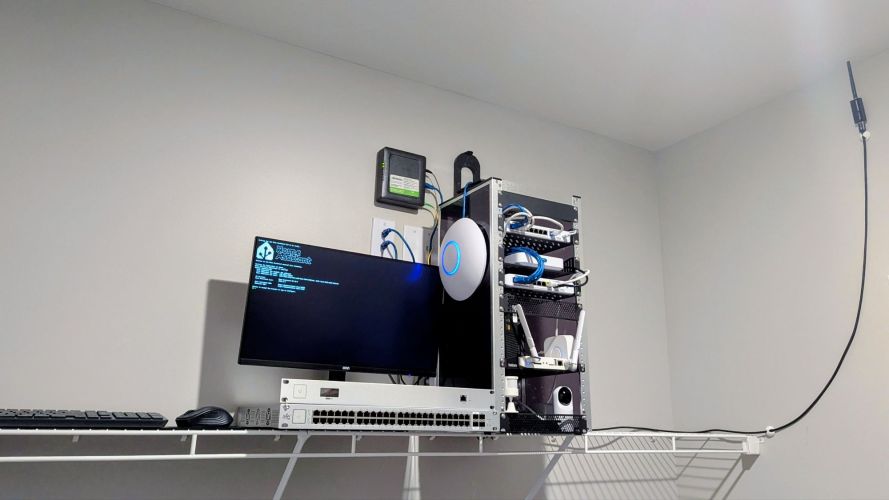
One thing I’ve learned over the years is that building a great network is only half the battle; being able to document it well is almost as important. Whether you’re troubleshooting six months later, sharing your homelab online, or simply trying to remember why you connected something a certain way, good documentation saves an incredible amount of time, and for people like me, find it an enjoyable experience.
I tend to use a different tool every time I do a new diagram. This time, I opted to start with a simple draw.io) diagram. It contained all of the tools I needed to get a basic layout completed, but the finished product wasn’t exactly something I’d want to publish. So, I was going to see if I could throw it into Visio after I was done to make things prettier, but figured hey, why not save some time and see if AI could do it? If you remember the last time I tried this, it didn’t end well, but, let’s see how it handles the job!
The Starting Point
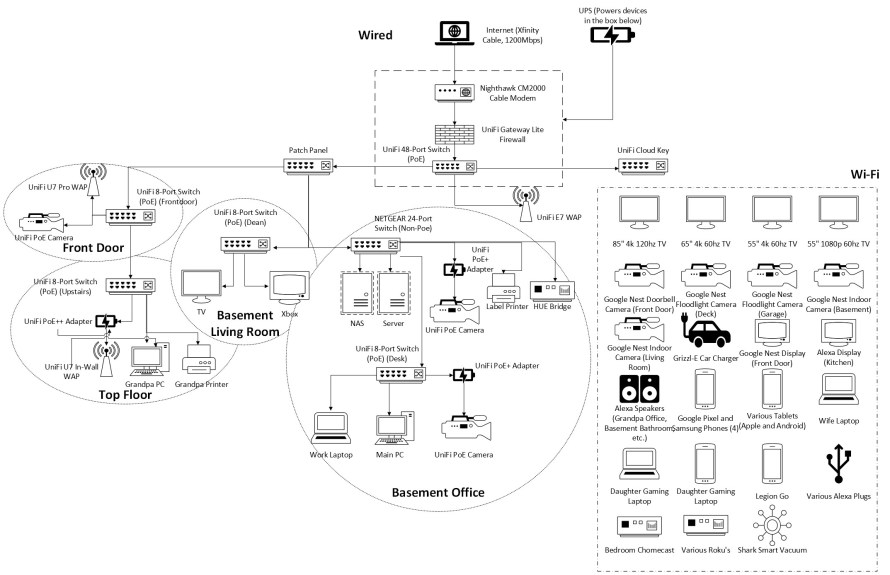
I was going to just use a template of an old network diagram (you can find several posts on diagrams in this website, and tips on how to make them), but wanted to do a fresh one since so much has changed in the move.

My original diagram was built entirely in diagrams.net (draw.io).
I chose draw.io because it’s:
- Free
- Cross-platform
- Stores diagrams locally
- Supports Visio imports/exports
- Has excellent networking icons
- Easy to modify as hardware changes
The goal wasn’t to make it pretty, just needed to simply document every device and every connection. The original version looked something like this:
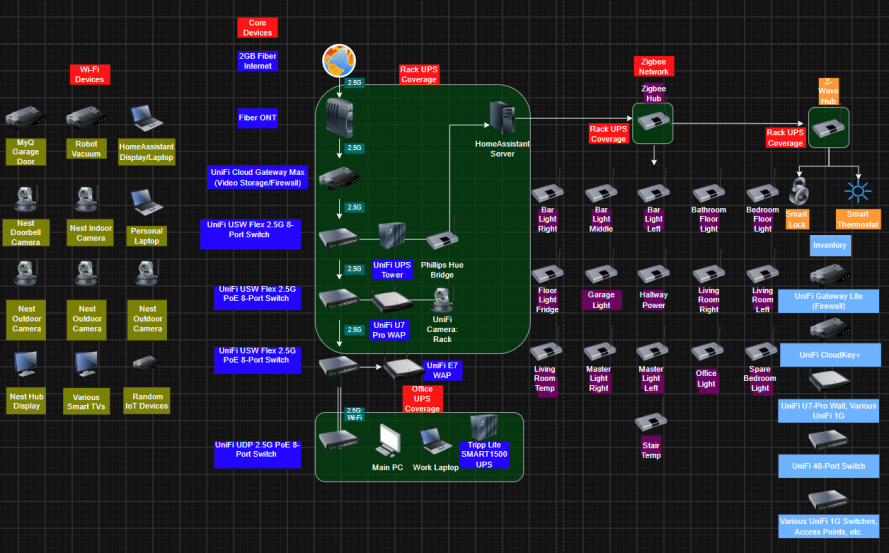
It wasn’t ugly—it was functional. Every device was represented, as well as every connection, device, general flow, and grouping. However, the overall style definitely needed a makeover!
Enter ChatGPT
Instead of spending hours manually moving boxes, changing colors, designing legends, and trying to imitate some of my past work, I decided to experiment with ChatGPT.
Rather than asking it to recreate my network from scratch, I used the draw.io export as the foundation.
Over multiple iterations I provided feedback like:
- Make it feel more like an enterprise Visio diagram.
- Group related devices together.
- Improve spacing.
- Add visual hierarchy.
- Add legends.
- Include summaries.
- Separate smart home devices from networking.
- Make it easier to understand at a glance.
Eventually it evolved into this.
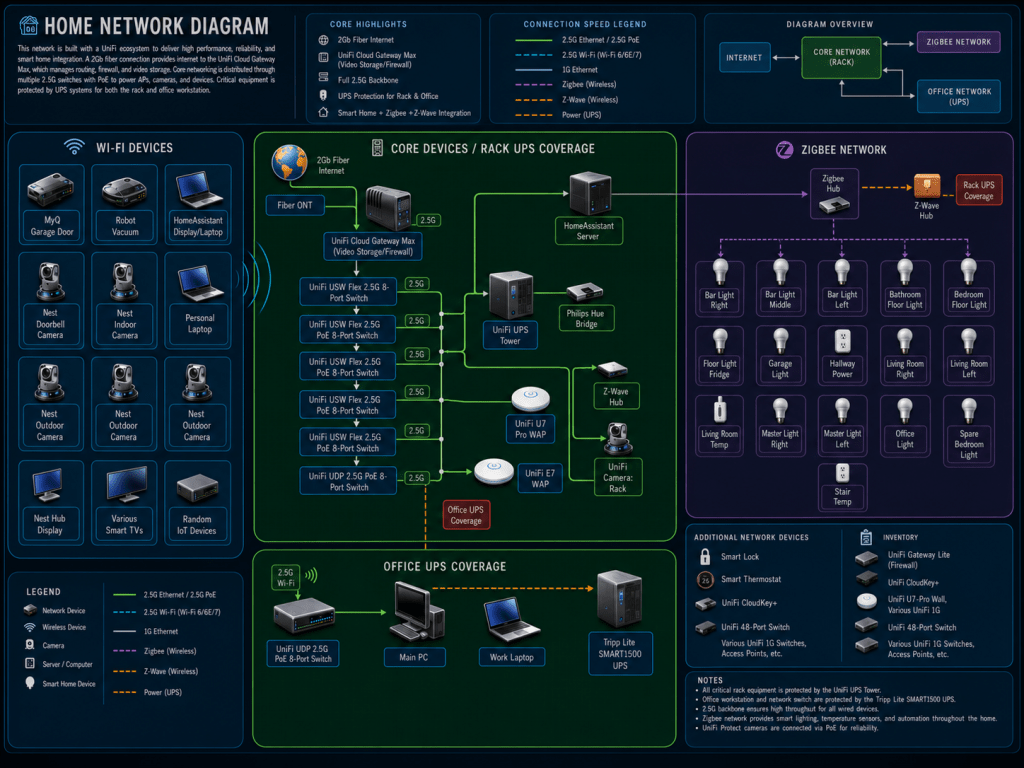
The difference is dramatic. Instead of looking like a wiring diagram, it looks like something that could appear in technical documentation or a vendor whitepaper. Not too shabby, especially if you use AI like you should, and just use it for inspiration.
The only error I saw was not grouping the Z-Wave devices together like I did in mine, and some of the lines leading to devices are wrong. But, one could easily fix it with a few more prompts.
Breaking the Diagram into Functional Areas
One of the biggest improvements wasn’t the graphics, It was organization. Instead of one giant web of lines, the network is divided into logical sections to better understand why things are placed where they are.
Core Network
The center section focuses only on infrastructure:
- Fiber ONT
- UniFi Cloud Gateway Max
- 2.5GB switches
- Access Points
- UPS coverage
This makes it immediately obvious how traffic flows through the network, and allows me to view the mission-critical devices.
Wireless Devices
Rather than cluttering the main diagram, wireless clients are grouped into their own panel.
That includes:
- Cameras
- Laptops
- TVs
- Smart Displays
- IoT devices
These don’t need individual connection lines because they’re all wireless clients, grouping them keeps the core architecture clean. I didn’t add everything in the home, but it gives a general idea.
Smart Home Layout
My smart home has grown large enough that it deserved its own section.
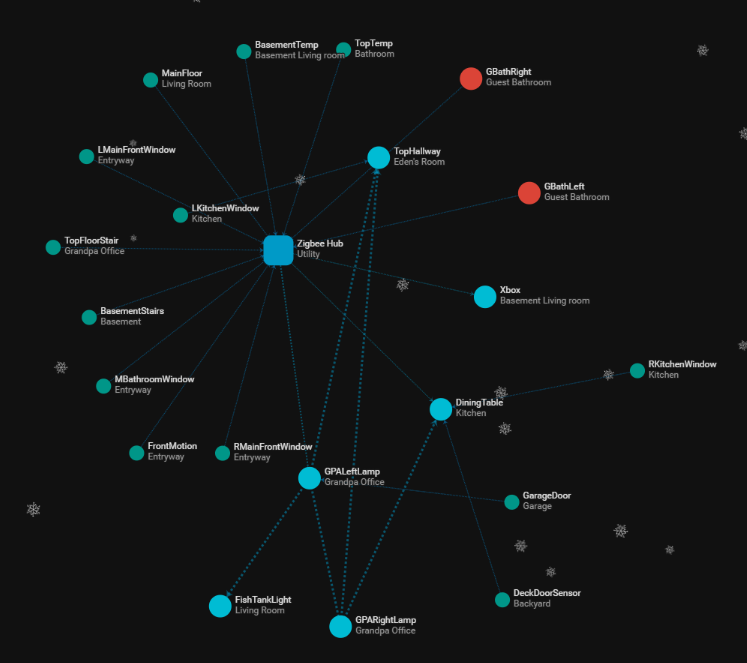
Instead of mixing Zigbee devices throughout the network, everything now lives inside its own panel showing:
- Zigbee Hub
- Z-Wave Hub
- Smart lighting
- Temperature sensors
- Power outlets
This gives a quick visual inventory of the automation environment without overwhelming the networking diagram.
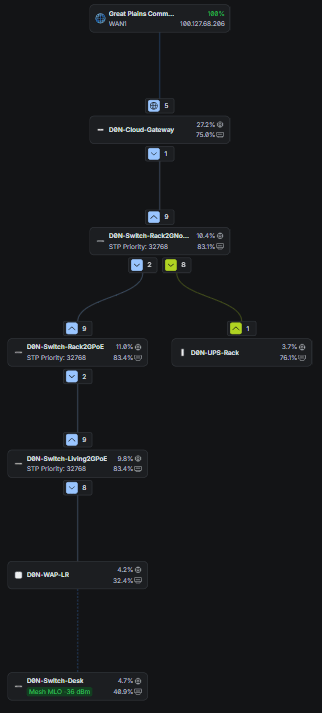
UPS Coverage
This ended up being one of my favorite additions.
Rather than simply noting that I own UPS units, the diagram clearly shows what each battery actually protects.
Infrastructure UPS:
- Gateway
- Switches
- Home Assistant
- APs
- Cameras
Office UPS:
- Main PC
- Work Laptop
- Office Switch
It’s a small detail that makes the diagram much more useful.
Small Touches That Make a Big Difference
Most of the improvements came from relatively simple design decisions.
Color coding
Each section has its own accent color.
- Green = Core Network
- Purple = Smart Home
- Blue = Wireless Clients
You can immediately identify the purpose of a section without reading every label.
Consistent icons
Using matching device icons throughout the diagram creates a much cleaner appearance than mixing clipart from multiple vendors.
Visual hierarchy
Instead of making every device equally important, larger headings, spacing, and grouped sections naturally guide your eyes toward the most important components first.
Legends
One thing I almost skipped was adding legends andthey ended up making the biggest difference.
Instead of guessing what dashed or colored lines mean, readers can immediately understand:
- Ethernet speeds
- Wi-Fi connections
- Zigbee
- Z-Wave
- UPS power paths
Inventory Section
Adding a small inventory box was another nice touch. It documents retired hardware, spare equipment, and devices that aren’t currently deployed without cluttering the main architecture.
What I’d Still Improve
Even though I’m really happy with the final result, there are still a few areas I’d like to refine.
Show VLANs
Adding VLAN IDs to connection paths would make the diagram more useful for troubleshooting and documenting segmentation.
Add Port Numbers
Including switch port assignments could make future hardware swaps much easier.
Show Internet Services
I may eventually add small callouts for services such as:
- WireGuard VPN
- UniFi Protect
- Home Assistant
- DNS
- DHCP
- NTP
This would show not just the hardware, but what services are running where.
Create Multiple Views
One lesson I learned is that a single diagram can’t answer every question.
Going forward, I’ll probably maintain several versions:
- Physical layout showing device locations throughout the apartment.
- Logical network diagram like the one in this article.
- Rack elevation documenting hardware placement.
- Service dependency diagram showing how Home Assistant, UniFi Protect, Zigbee, Z-Wave, and cloud services interact.
Each serves a different purpose and keeps individual diagrams from becoming too crowded.
Final Thoughts
The biggest takeaway from this project wasn’t that AI can build a network diagram for you—it can’t replace good documentation. The hard part is still mapping your network accurately and keeping it up to date.
What AI can do exceptionally well is help transform a functional engineering diagram into something that’s easier to read, easier to share, and more visually engaging.
My workflow ended up being surprisingly simple:
- Build an accurate diagram in draw.io (diagrams.net).
- Export it as an image.
- Iterate with ChatGPT to improve layout, grouping, colors, legends, and visual hierarchy.
- Keep refining until it communicates the network clearly without sacrificing technical detail.
Overall, this will safe a lot of time. Not just for initial creation, but updates and maintenance. Let me know what you think!
Categories: Example Documents, Networks


