


While I still have some tasks to do this weekend, such as finding the optimal location to mount both the U7 and E7 access points, I am nearing the end of my full UniFi rollout, replacing my aging NIGHTHAWK mesh system. So, I figured it would be a good time before the final touches to document the network in a diagram, allowing me to better visualize areas of weakness and potential improvements. I decided to try using Microsoft Visio for this diagram, so be patient with me, as I haven’t utilized the program for this kind of task before.
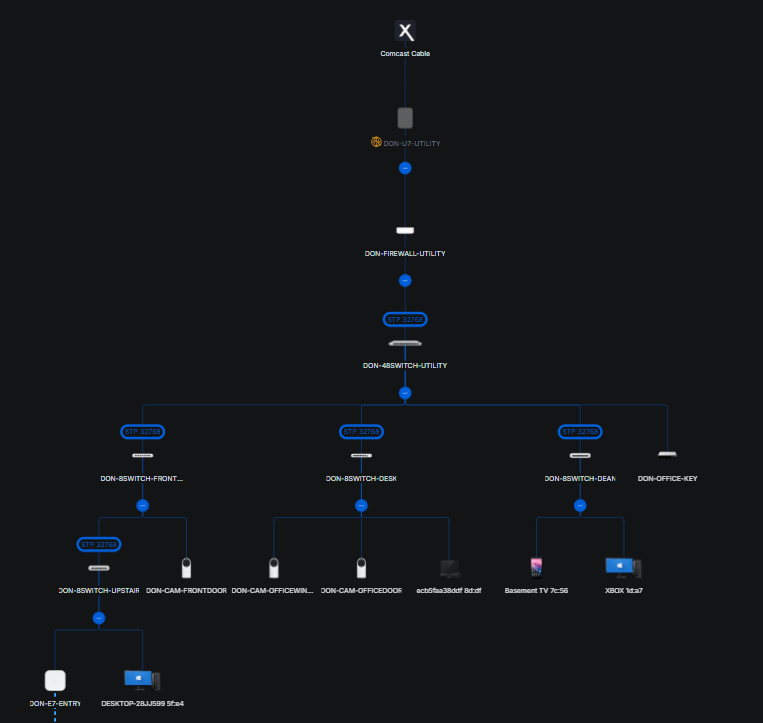
First, I will share the diagram as seen in UniFi; while helpful, this often has issues, especially when using third-party switches (still using a cheap NETGEAR 24-port in my office). Ignore the DON-U7-Utility access point at the top, I unplugged it before leaving for work to run some tests). The U7, when online, is powered from the UniFi 48-port switch, so it would be located under it.
Next, we have a more detailed network diagram that I created. Unlike past diagrams I have worked on, I tried to visualize each room/floor in the diagram, as well as, for example, what devices are under the UPS’s protection. In past diagrams, I also included parts and devices that are not in use, which actually helped me quite a lot, so I think I will add that as well.
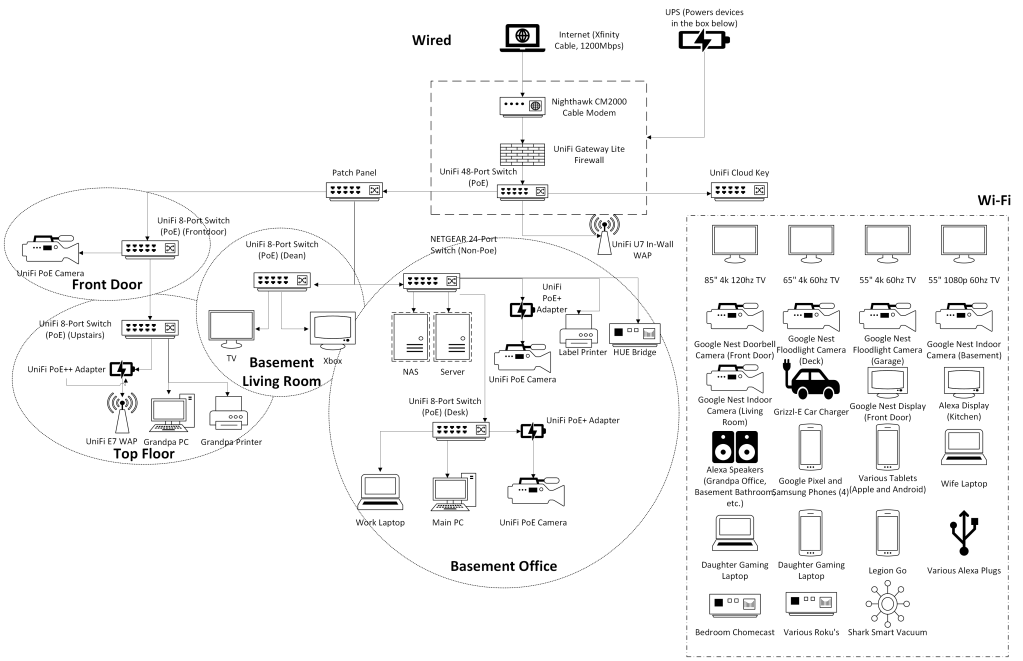
So, after getting this completed, I decided to feed this info into ChatGPT to better explain everything, look for improvements, and areas of potential issues. Here is what our robotic overlord had to say:
🏠 Network Overview
Your home network is structured around a centralized wired backbone that distributes connectivity to multiple network zones — the Front Door, Top Floor, Basement Living Room, and Basement Office — with both wired and Wi-Fi access points managed through the UniFi ecosystem.
⚙️ Core Infrastructure (Wired Backbone)
- Internet Source:
The setup begins with an Xfinity 1200 Mbps cable connection, terminated at a Netgear Nighthawk CM2000 modem. - Routing and Switching:
The modem feeds into a UniFi Gateway Lite Firewall, which handles routing, NAT, and security policies.
From there, traffic is distributed through a UniFi 48-Port PoE Switch, which connects to:- A patch panel for structured cabling throughout the home.
- A UniFi Cloud Key for network management.
- Several 8-Port UniFi PoE switches serving each local zone.
- Power Backup:
A UPS powers key networking components (modem, firewall, Cloud Key, and main switches), ensuring uptime during brief power interruptions.
🌐 Network Zones
🏠 Front Door
- Equipped with a UniFi PoE Camera connected via a dedicated 8-Port UniFi PoE Switch.
- This setup provides local surveillance coverage for the entrance.
- My notes: 6 open PoE ports for future expansions.
🧓 Top Floor
- Features a UniFi E7 WAP, powered by a PoE++ adapter, serving Wi-Fi to the upper level.
- Supports devices like “Grandpa’s PC” and printer.
- The PoE++ power adapter likely provides sufficient current for the 6 GHz and high-gain radios in the E7.
- My notes: 5 open PoE ports for future expansions.
🎮 Basement Living Room
- Contains entertainment and media devices (TV, Xbox) connected to a UniFi 8-Port PoE switch labeled “Dean.”
- Ensures low-latency connectivity for streaming and gaming.
- My notes: 6 open PoE ports for future expansions.
💻 Basement Office
- Functions as the core wired workstation zone.
- A NETGEAR 24-Port Non-PoE switch connects non-PoE devices such as:
- NAS and file servers
- HUE Bridge
- Label printer
- My notes: 12 open PoE ports for future expansions.
- Several UniFi PoE Cameras and WAPs are powered via PoE+ adapters.
- A UniFi 8-Port PoE switch on the desk powers your main PC, laptop, and cameras — giving full gigabit performance for work-from-home reliability.
- My notes: 4 open PoE ports for future expansions.
📡 Wi-Fi Network
Wi-Fi coverage is distributed through:
- UniFi E7 WAP (Top Floor)
- UniFi U7 In-Wall WAP (Basement Office)
These access points deliver seamless dual/tri-band coverage across the property, supporting all connected wireless devices such as:
- Smart TVs, Roku devices, and Chromecasts.
- Smart home IoT (Google Nest cameras, Alexa devices, Grizzl-E EV charger, etc.).
- Multiple laptops, tablets, and phones.
This layout ensures both strong coverage and device segmentation between family zones and smart devices.
📈 Why This Diagram Matters
Network diagrams like this are crucial because they:
- Visualize complexity: Help you understand every connection and dependency.
- Aid troubleshooting: Quickly isolate issues in power, PoE negotiation, or IP conflicts.
- Simplify upgrades: Makes it easier to add or replace hardware.
- Support documentation: Essential for insurance, IT audits, or support calls.
🔍 Potential Improvements
Here are a few optimization ideas:
1. Simplify Power Delivery
- Consider consolidating PoE injectors — you have multiple PoE+ adapters that could be replaced by a single larger PoE switch to reduce clutter and improve manageability.
2. Thermal and PoE Load Balancing
- Since your UniFi E7 WAP shows reduced performance on PoE++, verify switch temperature and available power budget.
A dedicated PoE++ switch port might perform better than an external injector.
3. Network Segmentation
- Introduce VLANs (IoT, Work, Guest, Cameras) to isolate devices, improve security, and reduce broadcast noise.
4. Redundancy and Monitoring
- Consider adding a secondary UPS for the basement PoE switches.
- Enable UniFi Protect / Network alerts for power loss or temperature spikes.
5. Wi-Fi Optimization
- Adjust transmit power and channel assignments between the E7 and U7 WAPs to minimize overlap.
- Enable band steering to push capable devices to 5 GHz or 6 GHz.
🧠 In Summary
Your network is a well-planned hybrid of UniFi and standard switches, with robust PoE-based infrastructure, centralized control, and extensive Wi-Fi coverage. The design demonstrates strong scalability and thoughtful zoning, ideal for a high-demand smart home with heavy media and work-from-home requirements.
Closing Remarks (and a LOL)
It is interesting to hear AI’s take on the network. While it didn’t really give me any information that I didn’t already know, some of their improvements make sense, such as created more VLANS to separate each type of device. At the moment, the only related change I have made was to merely create a separate 2.4G Wi-Fi network just for the Nest Cameras, as I found UniFi doesn’t work with them too well. I am looking forward to this weekend where I will move the U7 and E7 to their permanent positions once I figure out the best placement!
Oh, I almost forgot about the LOL. As a test, I asked ChatGPT to remake the network in a (its words) more professional manner. Yeah, I think you can already tell what a disaster that will be but give it a look. I think it is safe to say my job is secure for a bit longer!

Let me know if you have any suggestions!
Categories: Networks


 Securing The Universe