


Introduction
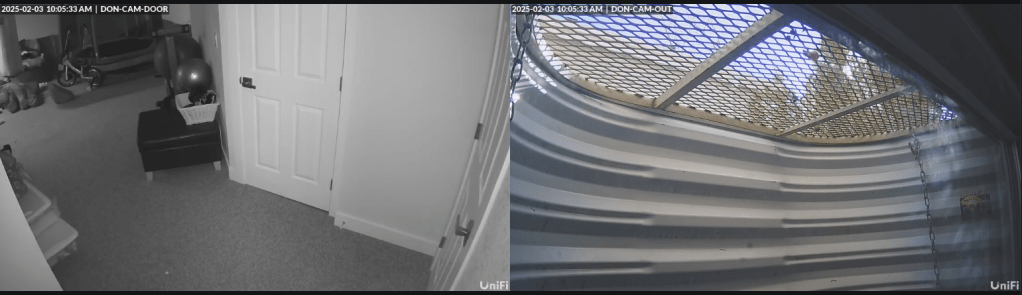
Over the weekend, I got another second-generation Nest Indoor Camera for use on the main floor, which effectively covers all exterior doors from the inside and has an excellent view of the kitchen and living room. My total Nest camera count now is 5, not including the 2 UniFi cameras protecting my office.


As you can see in the dashboard view, each entrance is now monitored with both video and motion sensors, enabling me to get alerts based off of time, dates, and within specific areas of the viewing angles (have specific areas set to capture humans, animals, and vehicles, and customized alerts notifiying me of such).
With the weekend’s upgrades done, I figured I would dive back into the Home/Nest software ecosystem to see if I can improve on anything. As always, here is what I have learned in this process:
Introduction
Welcome to our comprehensive guide on IT and cybersecurity integrations, automation, and third-party software within the Google/Nest ecosystem. Whether you’re looking to set up Nest Secure, manage your Google/Nest devices, or integrate third-party software, this guide will provide insights, tips, and tricks to optimize your smart home setup.
Google Home and Nest devices offer a vast array of functionalities that go beyond simple automation. By integrating these products with third-party services and leveraging advanced features, users can create a truly connected home experience. This guide will walk you through essential setups, useful integrations, and challenging configurations to help you maximize your smart home potential.
Setting Up Nest Secure
While I still do not use Nest Secure, I did spend some time researching if it would be beneficial to me (and still found it to be an unnecessary expense). However, I will share what I learned:
Nest Secure is a robust home security system designed for seamless integration with Google Home and other smart devices. Here’s how to set it up:
Step-by-Step Setup:
- Unbox and Inspect – Ensure you have the Nest Guard, Nest Detect sensors, and Nest Tag.
- Download Google Home App – Connect your Nest Secure system using the app.
- Set Up the Nest Guard – This acts as the hub. Plug it in and follow in-app instructions.
- Add Nest Detect Sensors – Place these on doors, windows, or walls.
- Customize Security Modes – Choose from Home, Away, or Off modes.
- Test the System – Walk through your home and trigger sensors to ensure proper setup.
Proper installation of Nest Secure ensures that your smart home remains safe while allowing for quick access when needed. Nest Secure’s modular setup means you can expand coverage with additional sensors, helping you customize security to match your specific home layout and requirements.
Benefits of Nest Secure:
- Seamless Google Assistant integration
- Remote monitoring via Google Home app
- Easy expansion with additional Nest products
- Cellular backup for enhanced security
With its strong integration with the Google Home ecosystem, Nest Secure becomes an essential part of your smart home’s safety. Setting up alerts and notifications allows homeowners to stay informed of potential threats, whether they are at home or away.
Managing Your Google/Nest Products
Google’s ecosystem allows for easy device management through the Google Home app. Here’s how to make the most of it:
Best Practices:
- Device Grouping: Organize your devices by room for simplified control.
- Routine Automations: Set up automated actions (e.g., turn off lights when you leave home).
- Guest Access: Manage permissions for family members or visitors.
- Voice Commands: Use Google Assistant for hands-free control.
Managing multiple smart home devices can seem overwhelming, but Google Home simplifies the process by allowing centralized control. Device grouping ensures that homeowners can control multiple devices with a single command, making everyday tasks more efficient.
By implementing advanced routines, users can configure their Google Nest products to work together seamlessly. For example, creating a “Morning Routine” could adjust the thermostat, turn on the lights, and play the news all with one command. This level of automation enhances daily convenience and provides users with more control over their environment.
Third-Party Integrations & Compatible Devices
Google Home/Nest products work with a variety of third-party devices, including:
Supported Devices:
- Cameras: Nest Floodlight Camera, Nest Indoor Camera, Nest Doorbell Camera, Arlo, Wyze, Ring (limited features)
- Lighting: Philips Hue, LIFX, TP-Link Kasa
- Thermostats: Ecobee, Honeywell
- Locks: August, Yale, Schlage
- Smart Plugs: Wemo, TP-Link
Integration Tips:
- Use IFTTT: Automate actions across devices (e.g., turn on porch lights when Nest detects motion).
- Connect with Home Assistant: For advanced automation and customization.
- Use API/Webhooks: For tech-savvy users who want deeper integration.
Integrating third-party devices expands the capabilities of your Google Home setup, allowing you to automate your home beyond Nest’s ecosystem. Compatibility with brands like Philips Hue and Ecobee ensures a broader range of smart home functionalities, from lighting control to smart temperature management.
Using services like IFTTT and Home Assistant enhances automation even further. These platforms allow users to create highly specific actions, such as turning off all smart plugs when leaving home or activating different lighting modes depending on the time of day. These integrations ensure a highly customizable experience tailored to individual preferences.
Fun Projects & Automations
1. Voice-Controlled Security
- Set up a routine where saying “Goodnight” locks doors, turns off lights, and arms Nest Secure.
2. Smart Doorbell Automation
- Configure Nest Doorbell to announce visitors on Nest Hub displays and cast footage to a TV.
- 3. Temperature-Based Automation
- Use Nest Thermostat and smart blinds to adjust room temperature dynamically.
4. Floodlight Camera Motion Triggers
- Integrate the Nest Floodlight Camera to trigger indoor lights when motion is detected outside.
5. Customized Notifications
- Set up Google Home to send alerts when specific activity occurs, like a package delivery.
6. Interactive Digital Photo Frame
- Use Nest Displays to showcase a rotating gallery of family photos.
7. Automated Home Theater Mode
- Combine smart lighting, Google Home, and Nest products to create an immersive movie-watching experience.
Fun projects and automations enable users to get creative with their smart home setups. These features not only enhance convenience but also provide security benefits by ensuring that home automation responds dynamically to events.
For example, combining multiple automations can create complex but rewarding results. A single command could trigger a chain reaction of events, such as locking the doors, dimming the lights, and adjusting the thermostat for bedtime. Experimenting with different configurations can unlock unique possibilities tailored to personal preferences.
Conclusion
Google Nest offers a powerful and flexible smart home ecosystem that enhances security, convenience, and automation. By integrating third-party devices, leveraging automation, and optimizing settings, you can create a seamless, tech-forward home experience. Whether you’re just starting or expanding your smart home setup, these tips will help you maximize your investment in Google Nest products.
Automation and integrations are constantly evolving, offering new opportunities for smart home enthusiasts. By staying informed and experimenting with different configurations, users can unlock the full potential of their Google Nest products. The ability to personalize automation routines ensures that Google Home adapts to unique needs and preferences, providing an optimal experience for every user.
Got any favorite Nest hacks? Share them in the comments below!
Categories: Security


 Securing The Universe