


My wife’s grandfather has been complaining about slow and temperamental connections while using online video conferencing apps. As I know the network has nothing to do with it (after testing), I went ahead and looked at what he was running as a main PC, and quickly found the culprit. With a whopping 6GB of RAM, Windows 8, an ancient 2-core CPU, and a dated HDD, I was surprised the computer was still even running. So, like any good family member who works in tech, I felt the need to intervene.
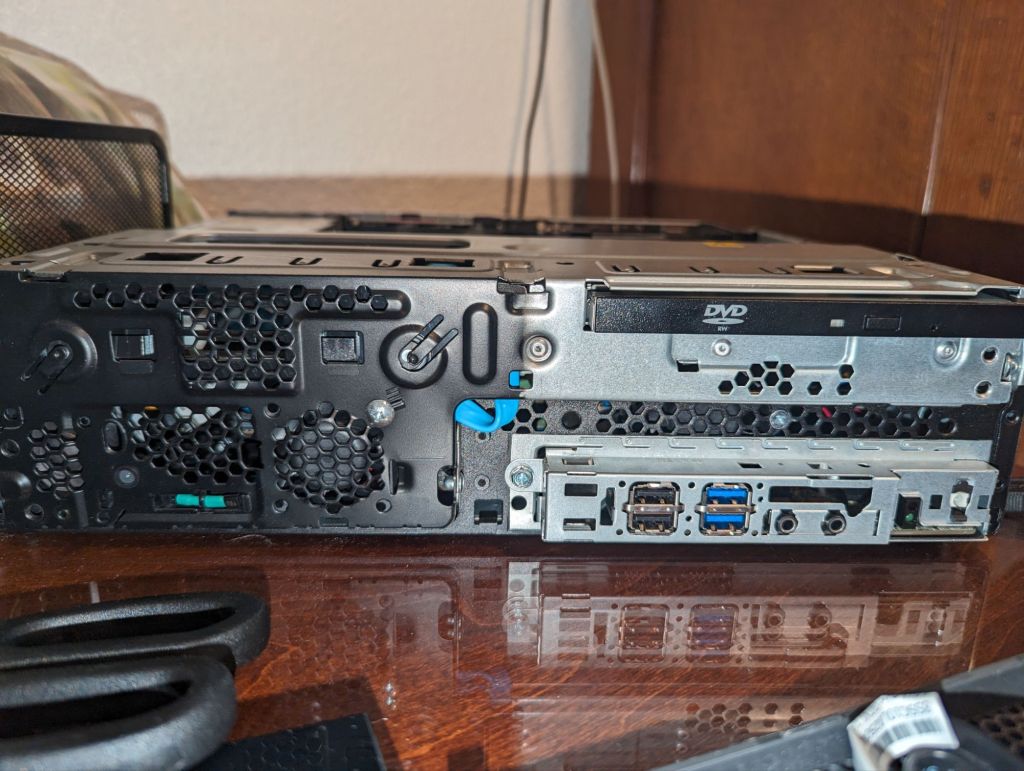
At work, we had an older Lenovo ThinkCentre that we were going to throw out that had a much newer 4-core processor, and then figured I would use some spare parts I had to upgrade it a bit further. I also cleaned the device of dust, installed a fresh Windows 10 OS, and threw on all my security software.
I added 16GB of RAM, a 256GB boot NVME drive, 1TB SSD (extra storage), and two 80mm intake fans, along with his existing backup SSD. Furthermore, as her grandfather was also still using the monitor that came with this ancient PC, I went ahead and gave him a larger 1080P 144hz monitor that I was using for my server.
I can’t tell you how much of an improvement this upgrade was. Before, it would take 10+ minutes to boot up, and selecting anything on the screen would take about a minute or two to load. With the new machine, boot times are near nonexistent, especially after some tweaks to startup performance. My wife’s grandfather’s face was priceless as I saw him navigate straight to an online chess game and saw that he could now actually play without it pushing the older computer’s limits to the max (*jet engine sounds*).

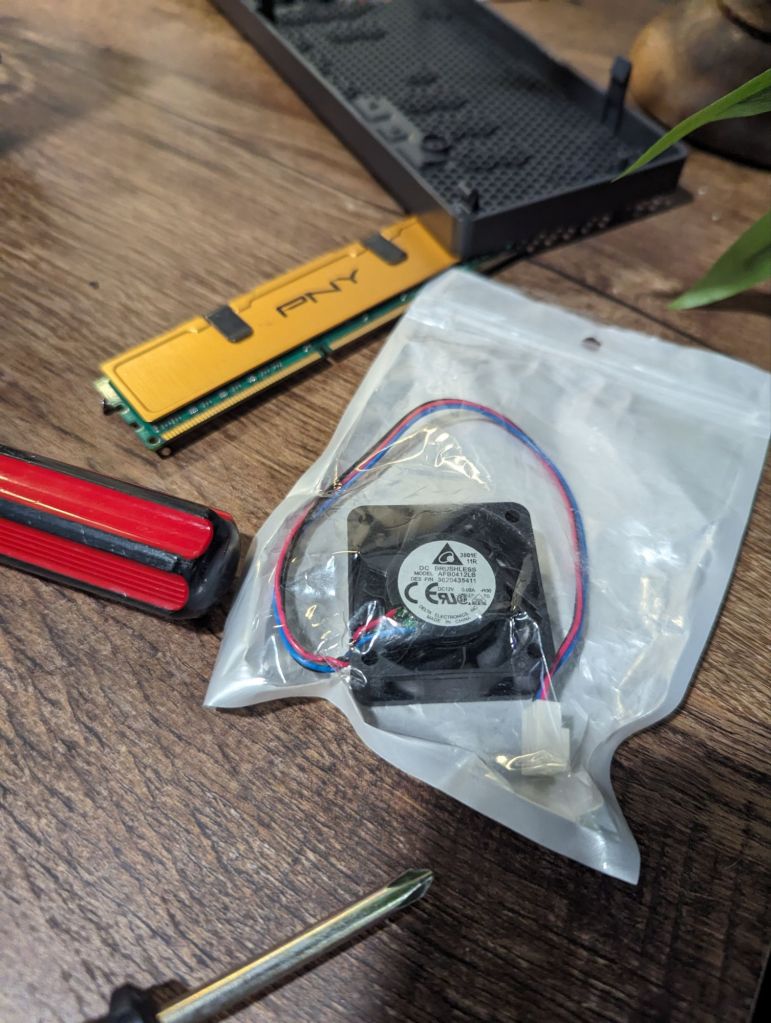

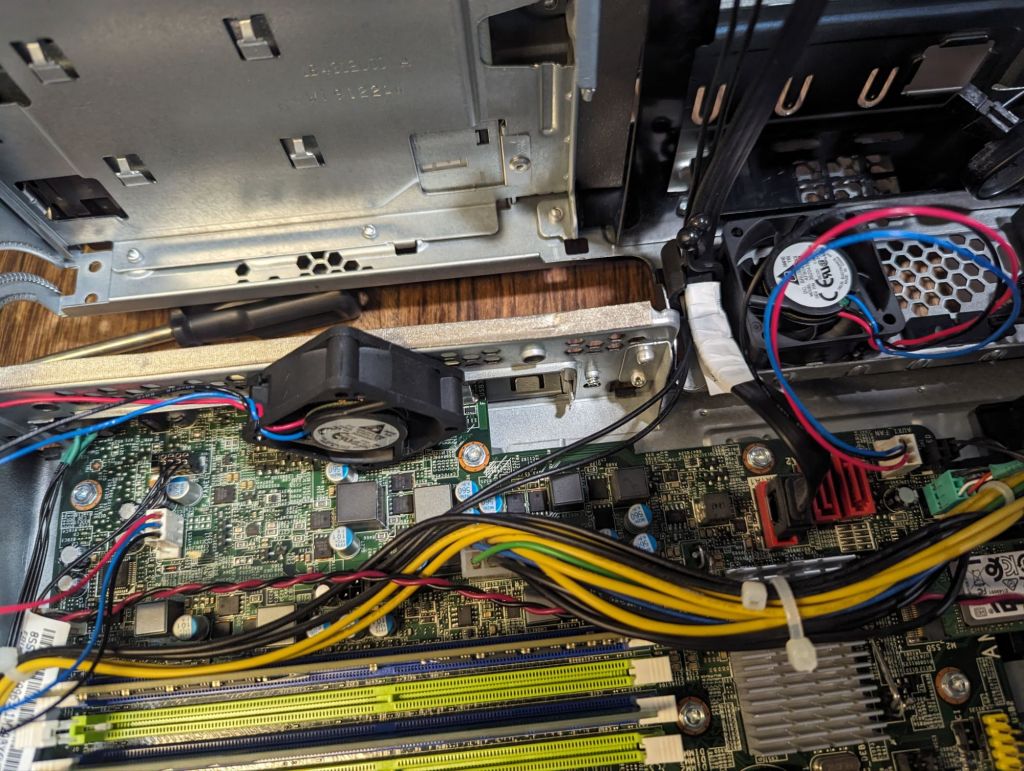
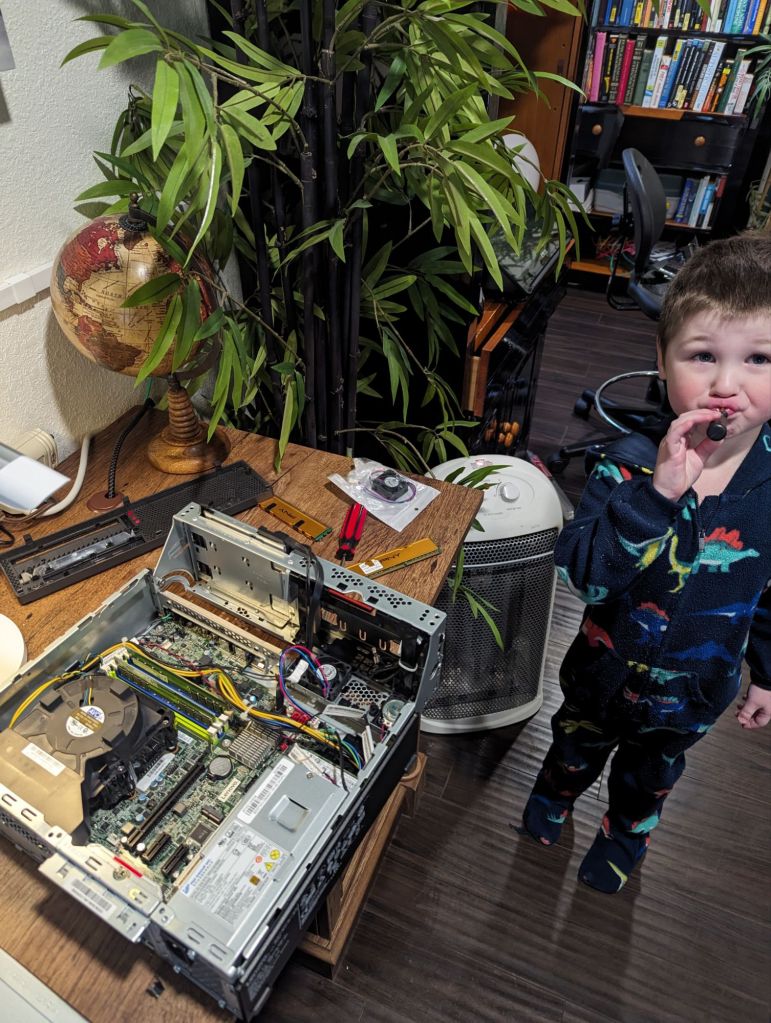
With the upgrades done, I then turned my attention to transferring his files over. He was using Windows 8 and had an external backup (the last one was in 2019 though). So, I could either load that old OS onto the new PC and hopefully perform an upgrade to Windows 11 or stick with this fresh Windows 11 OS and transfer the data (OneDrive, backup SSD, etc.). Working with older devices is a challenge but is typically pretty rewarding once complete!
Updated 3/28/24
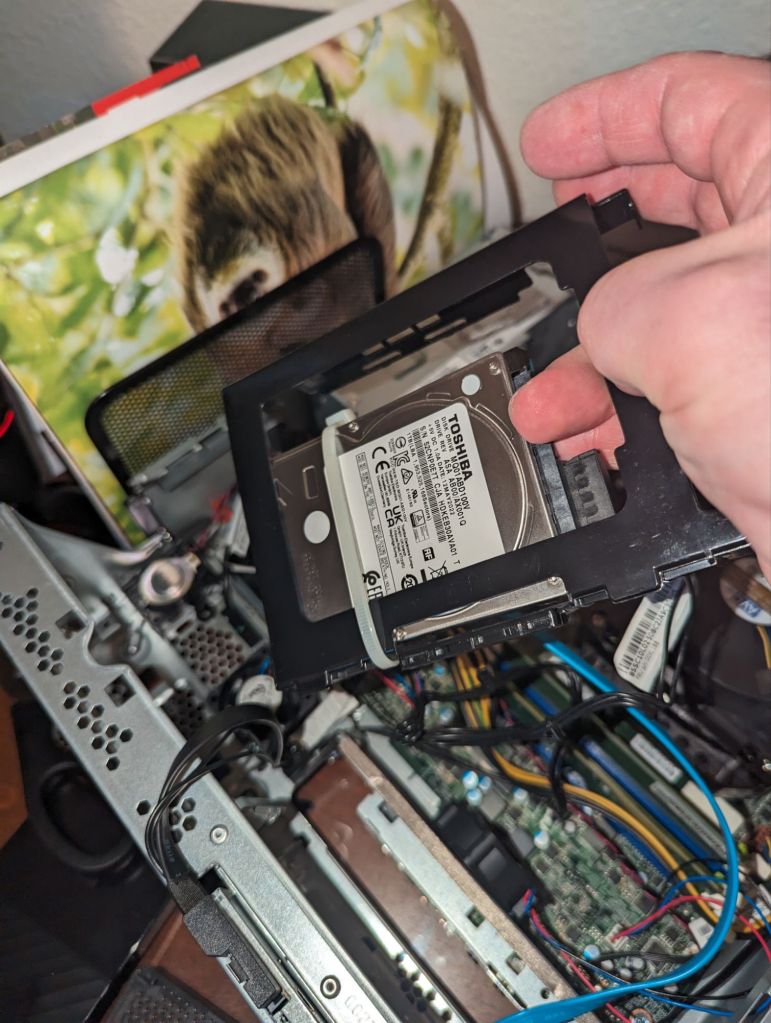
I ended up going with the fresh OS install as I found some malware in his past backups, so I wanted to have a clean start. He is now running Windows 11 with all of his files loaded (from multiple past backups that appear to be from different computers). I also installed a larger 1TB SSD for file storage and kept the 256GB NVME SSD for the OS. Furthermore, I added him to our Microsoft family plan, allowing him to enjoy OneDrive while having actual storage (granting him another backup method).
I really enjoyed working on this older Lenovo ThinkCentre; it was my first project on a stock case that I didn’t have to modify anything to install parts. Check out that slick SSD install below (ugly, but functional).
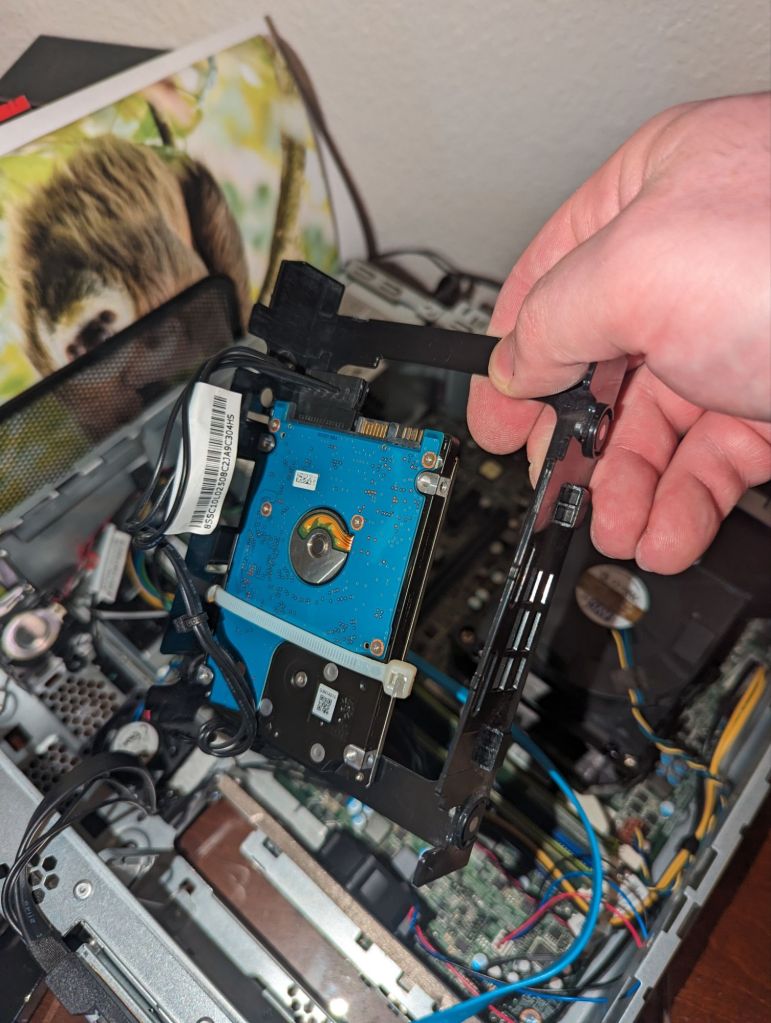

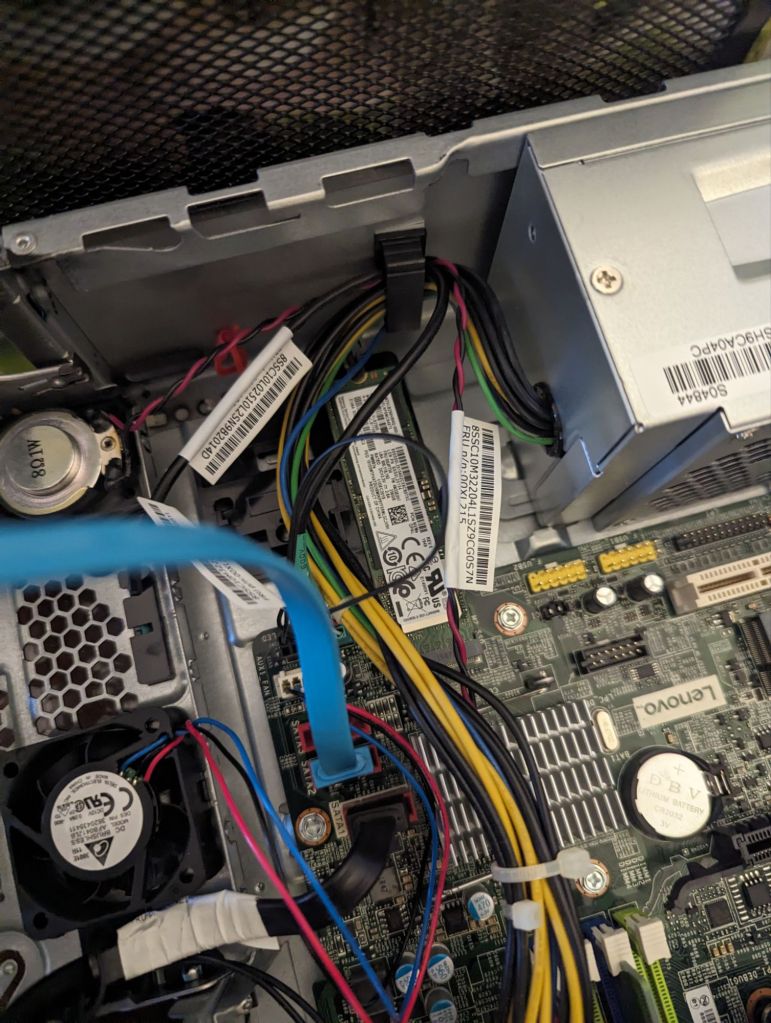
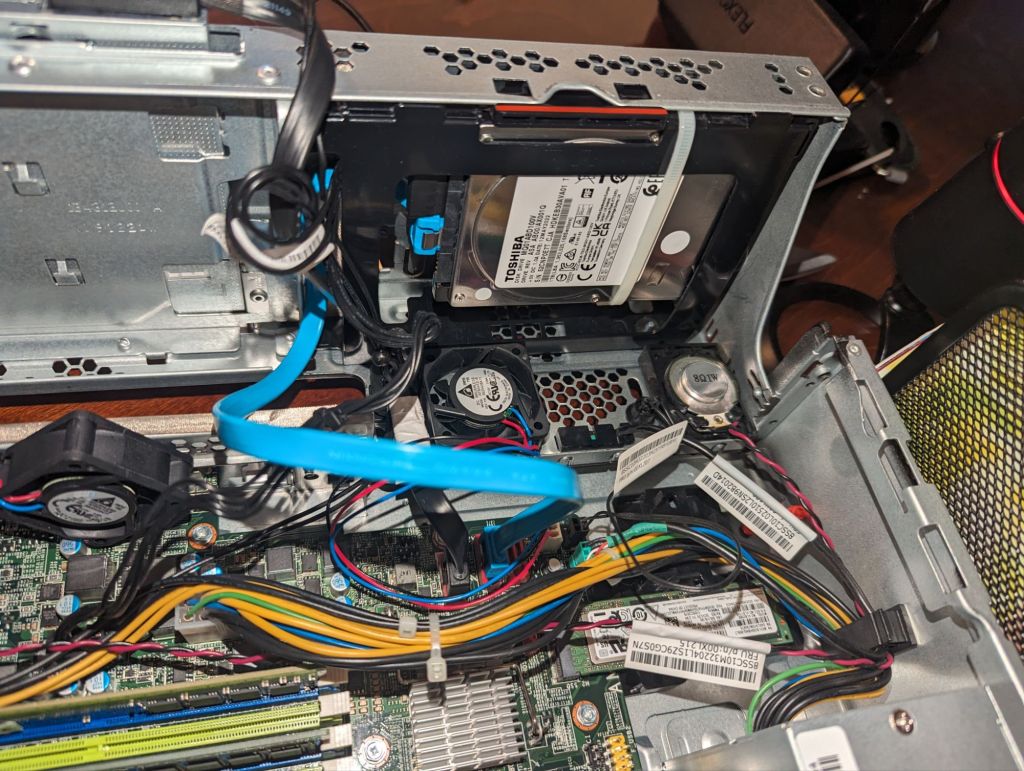
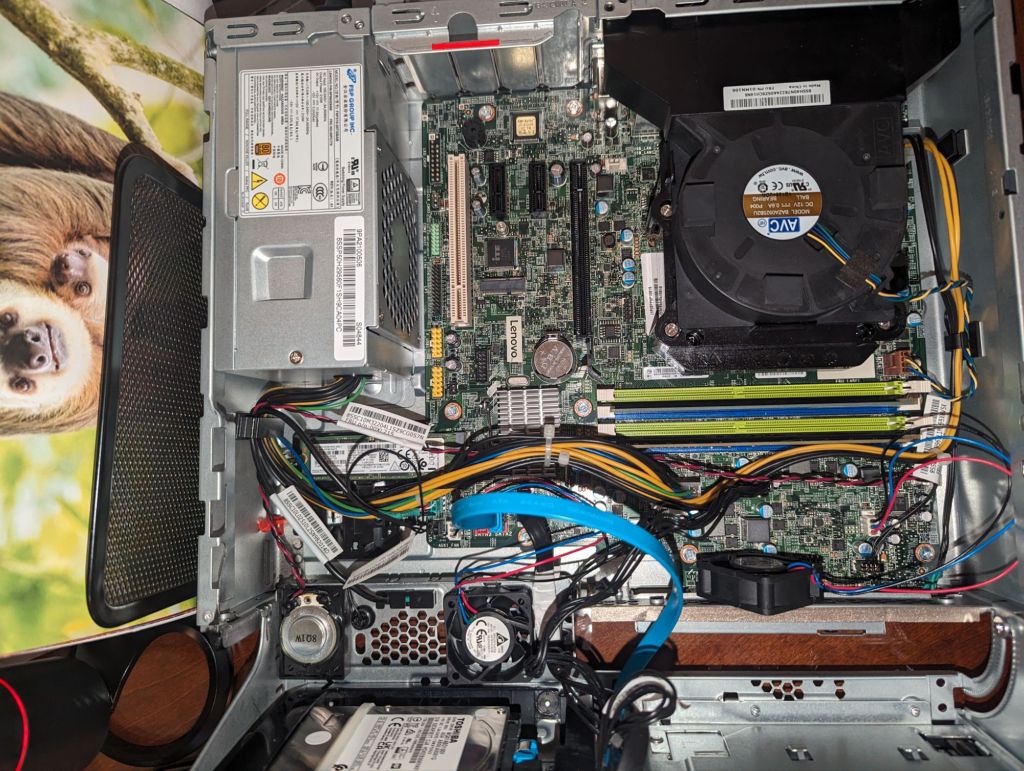
At this point, I think I am done with this little project. Since I had all of these parts lying around in my office from past builds, this entire PC cost nothing and is performing well above what it did stock. Not that my grandpa plays any games, but I might install an older GPU I currently use in my server at some point (R7 250 or something?)
Thanks for reading, and good luck supporting your friends and family with their tech issues!
Categories: Hardware


 Securing The Universe