



Introduction to Proxmox
I have been bombarded with information regarding Proxmox as of late, seeing awesome home lab setups consisting of a few SFF PCs pieced together, but until today, I really didn’t know what they were up to. So, I figured this would be a good time to research Proxmox a bit, design a cluster, and possibly give it all a shot one of these weekends.
In today’s fast-paced technological landscape, businesses and individuals alike are constantly seeking ways to optimize their IT infrastructure. Virtualization has become a key strategy, enabling efficient resource utilization, enhanced flexibility, and simplified management. Proxmox Virtual Environment (Proxmox VE) is a powerful, open-source platform that facilitates virtualization and container management. In this blog post, we’ll explore what Proxmox is, what it can do, the hardware needed to run it, and provide a step-by-step guide for its initial setup.
What is Proxmox?
Proxmox VE is an open-source virtualization platform that combines two major virtualization technologies: virtual machines (VMs) and containers. It is based on Debian GNU/Linux and allows users to create and manage virtualized environments with ease. Here are some of the key features and functionalities Proxmox VE offers:
Virtual Machines (VMs): Proxmox supports the creation and management of VMs, making it an ideal solution for running multiple operating systems on a single physical server.
Containers: Proxmox uses LXC (Linux Containers) and provides a lightweight and efficient way to run applications in isolated environments. Container technology allows for faster deployment and resource-efficient operations.
Storage: Proxmox supports various storage options, including local storage, network-attached storage (NAS), and storage area network (SAN). You can easily configure and manage storage to meet your specific needs.
High Availability: Proxmox VE offers a built-in high availability cluster for maximum uptime and data redundancy.
Backup and Restore: Proxmox has built-in backup and restore tools, making it simple to protect your virtual environments.
Hardware Requirements
Before you dive into setting up Proxmox, it’s essential to ensure that you have the necessary hardware in place. The specific hardware requirements may vary depending on your use case, but here are some general guidelines:
A 64-bit CPU: Proxmox requires a 64-bit processor with virtualization support (e.g., Intel VT-x or AMD-V) for optimal performance.
Adequate RAM: The amount of RAM you need depends on the number and size of VMs or containers you plan to run. As a starting point, consider a minimum of 4GB of RAM.
Sufficient Storage: You’ll need enough storage space for your VMs, containers, and Proxmox installation. It’s recommended to have at least 32GB of free disk space.
Network Connectivity: Ensure your server has network connectivity for accessing the Proxmox web interface and managing virtual environments.
Initial Setup Guide
Now, let’s go through the initial setup of Proxmox VE:

- Download Proxmox VE: Visit the Proxmox website (https://www.proxmox.com/proxmox-ve) and download the ISO image.
- Create a Bootable USB Drive: Use a tool like Rufus (for Windows) or Etcher (for macOS and Linux) to create a bootable USB drive with the Proxmox ISO.
- Boot from USB: Insert the bootable USB drive into your server and boot from it.
- Install Proxmox VE: Follow the on-screen instructions to install Proxmox VE on your server. You’ll be asked to configure network settings and set a password for the web interface.
- Access the Web Interface: After installation, open a web browser and enter the IP address of your Proxmox server. Log in with the credentials you set during installation.
- Configure Storage: In the web interface, configure storage to store your virtual machines and containers. You can use local storage or connect to network storage.
- Create VMs or Containers: Use the web interface to create virtual machines or containers, specifying the operating system, resources, and storage. You can also import existing VMs if needed.
- Start and Manage: Start your VMs or containers, and manage them through the web interface. Proxmox provides a user-friendly dashboard for monitoring and controlling your virtual environments.
Conclusion
Proxmox VE is a versatile virtualization platform that empowers users to efficiently manage VMs and containers. With its open-source nature and powerful features, it’s an excellent choice for businesses and individuals looking to optimize their IT infrastructure. By following the initial setup guide provided in this blog post, you can get started with Proxmox and explore the benefits of virtualization in no time.
Proxmox Clusters
Creating a Proxmox cluster using multiple Small Form Factor (SFF) PCs can be a cost-effective and space-efficient way to build a virtualization environment. Below is a design for a starter Proxmox cluster using SFF PCs:
Cluster Overview:
The cluster consists of three SFF PCs, each running Proxmox VE. This design assumes you have access to a network switch for connectivity and that the SFF PCs are already equipped with the necessary hardware components.
Hardware Requirements:
- SFF PCs: Ensure each SFF PC meets the minimum hardware requirements mentioned earlier, including a 64-bit CPU, sufficient RAM, and storage space.
- Network Switch: You’ll need a managed switch with enough ports to connect all three SFF PCs, as well as any other network devices you might want to integrate.
- Network Cables: Obtain Ethernet cables to connect the SFF PCs to the network switch.
Software Requirements:
- Proxmox VE ISO: Download the Proxmox VE ISO from the Proxmox website.
Cluster Design:
- Node Configuration:
- Each SFF PC will act as a Proxmox node within the cluster.
- Install Proxmox VE on each SFF PC using the bootable USB drives you created during the initial setup.
- Network Setup:
- Connect all three SFF PCs to the managed network switch using Ethernet cables.
- Ensure that each node has a static IP address on the same subnet, and configure DNS and gateway settings accordingly.
- Cluster Configuration:
- In the Proxmox web interface of each node, navigate to Datacenter > Cluster and set up a new cluster by adding the other nodes using their IP addresses.
- Configure shared storage between the nodes. This can be achieved using network-attached storage (NAS) or a distributed file system (Ceph, GlusterFS).
- High Availability:
- Enable high availability (HA) within the cluster configuration to ensure automatic failover and redundancy for your virtual machines.
- Virtual Machine and Container Creation:
- Use the Proxmox web interface to create and manage virtual machines and containers.
- Store your virtual machines and containers on the shared storage to ensure they can be moved between nodes easily.
- Backup and Monitoring:
- Implement regular backup strategies for your virtual machines and containers to prevent data loss.
- Configure monitoring tools to keep an eye on the health and performance of your cluster.
Optional Enhancements:
- Remote Access: Set up remote access via SSH or VPN for easy management and maintenance of the cluster.
- Load Balancing: Consider adding load balancing to evenly distribute network traffic among the nodes for enhanced performance.
- Additional Nodes: As your needs grow, you can expand the cluster by adding more SFF PCs to increase computing and storage capacity.
Conclusion:
Building a Proxmox cluster with SFF PCs can provide a cost-effective way to deploy a virtualization environment. By following this design, you can create a robust and scalable Proxmox cluster that meets your needs while saving space and resources. Remember to continually monitor and maintain your cluster to ensure optimal performance and reliability.
My Plan
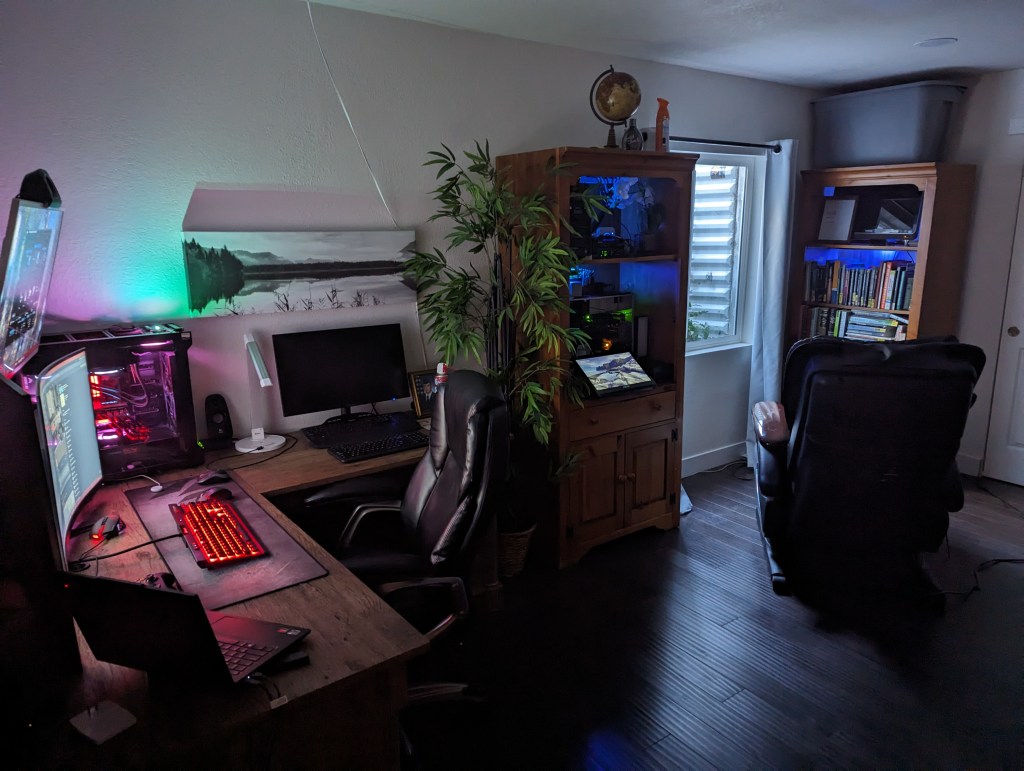
As I currently have a main 5800x/3090 PC, a server, an all-in-one PC, and two laptops in my lab to play with, I think I can at least get a rough Proxmox cluster running for testing purposes.
The better idea may be to just run it on my server once it is fully upgraded, but really, the cluster part of this build is what is interesting to me.
If I do like the program, I may end up sourcing some used SFF PCs and get everything running properly. I love these kind of projects! Hopefully, I can find some time this coming weekend.
Categories: Hardware


 Securing The Universe